

Write has picked up a lot since the omnibus post. Most of it came from authors telling us what they wanted to see on the page, so this is a tour of the things you’ll notice, with a link to the help page for each when you want the details.
See your book as a book
Preview now shows your book the way a reader holds it: two facing pages, side by side, that turn when you page through, with the paper bending as it goes. It’s the quickest way to see whether a chapter opening lands where you hoped, or whether a picture faces the page you meant it to.
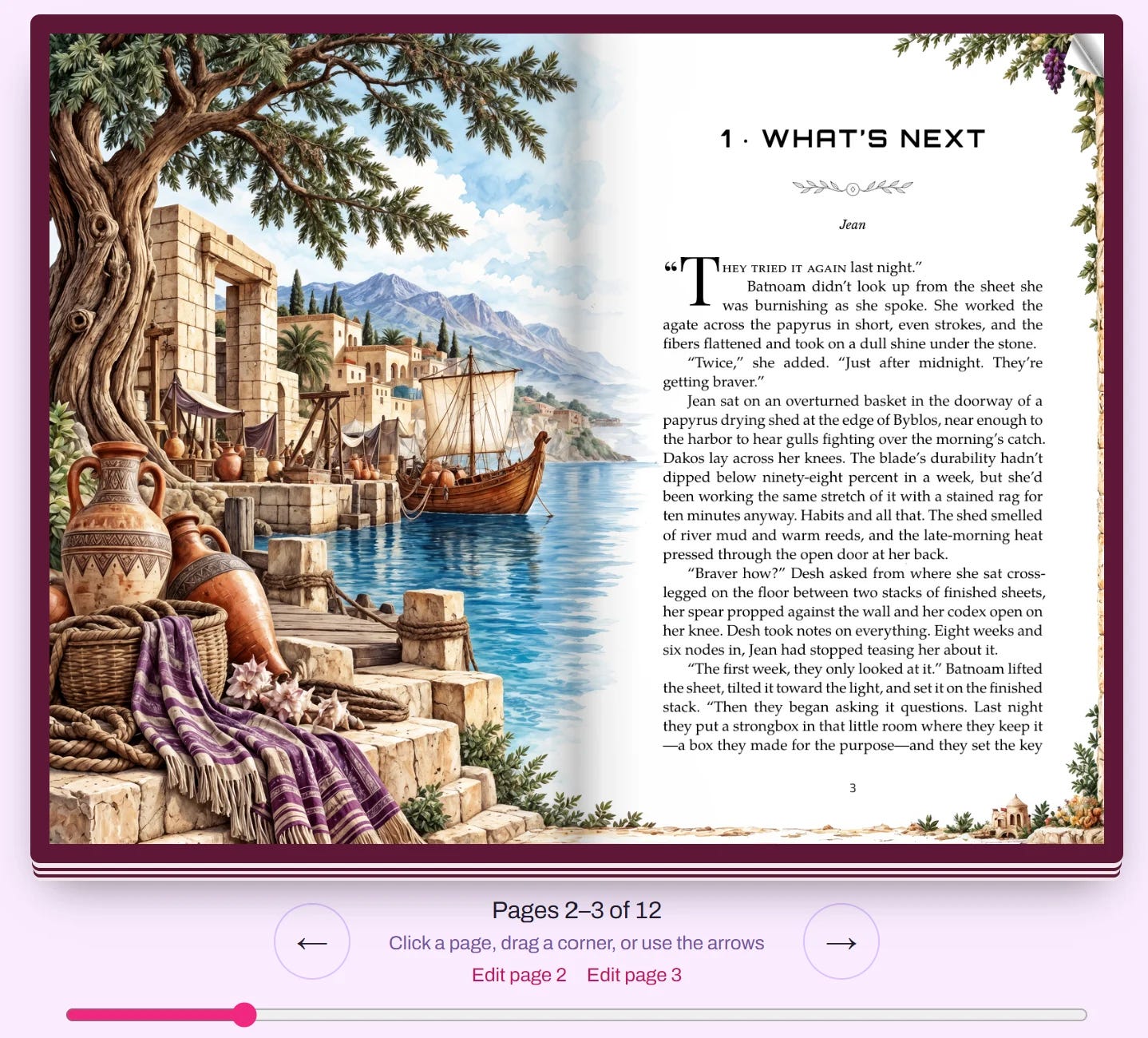
You can also switch the preview between colour and black and white. If your paperback prints in black ink, that’s the version to check your pictures and ornaments against.
A title page that looks like yours
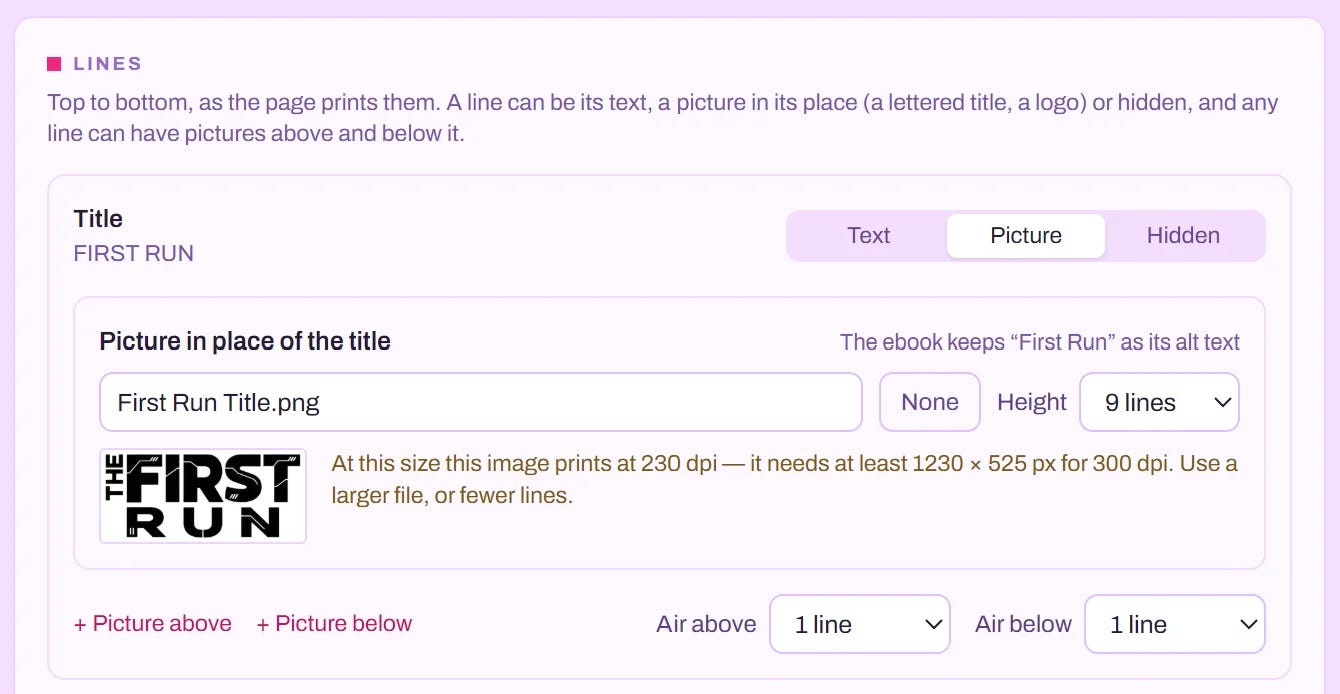
Each line of the title page—the title, subtitle, series line, byline and publisher—can now be printed as text, swapped for a picture, or hidden. A hand-lettered title, your imprint’s logo in place of its name, a series line you’d rather leave off: all of it lives in the title page’s Lines card. You can add pictures above or below any line too, for an ornament between the title and the subtitle or a logo over the publisher.
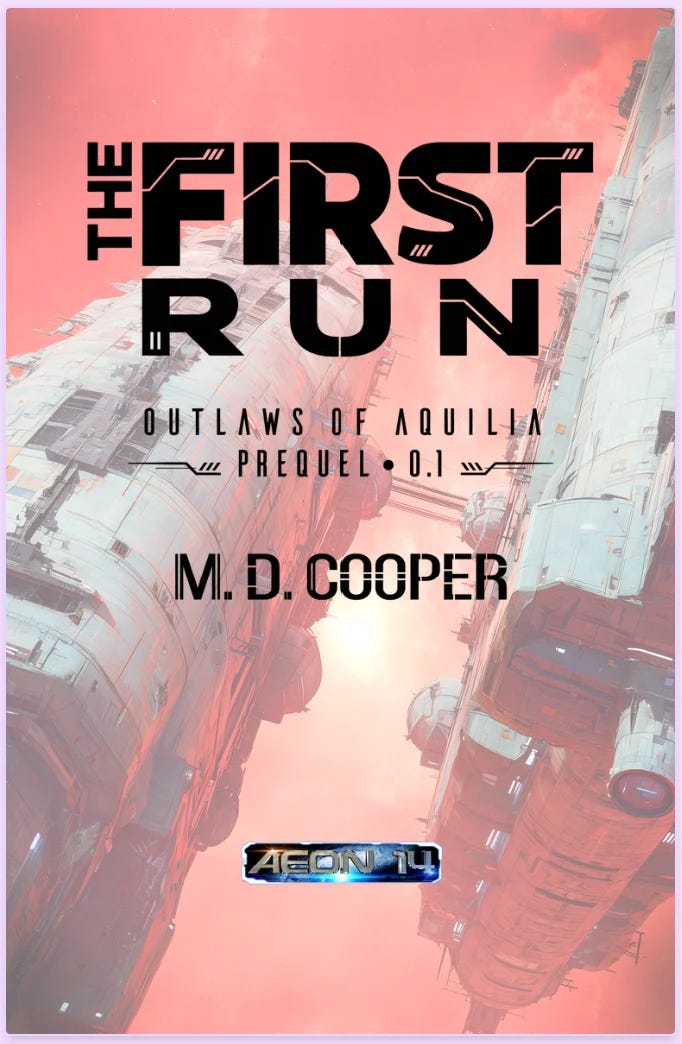
Anything you leave as text keeps your book’s own title fonts, and the ebook keeps your real title as the picture’s description, so screen readers and stores still see it. See Design your title page with words, pictures or hidden lines.
Front and back matter, aligned your way
A section’s heading used to follow your chapter titles. Now each front or back matter section has its own Title alignment: as the book’s, or left, centred or right for that section alone. A centred foreword in a book of left-aligned chapters is one click. The editor, the preview, the PDF and the ebook all follow it. See Front and back matter.
Pictures between chapters
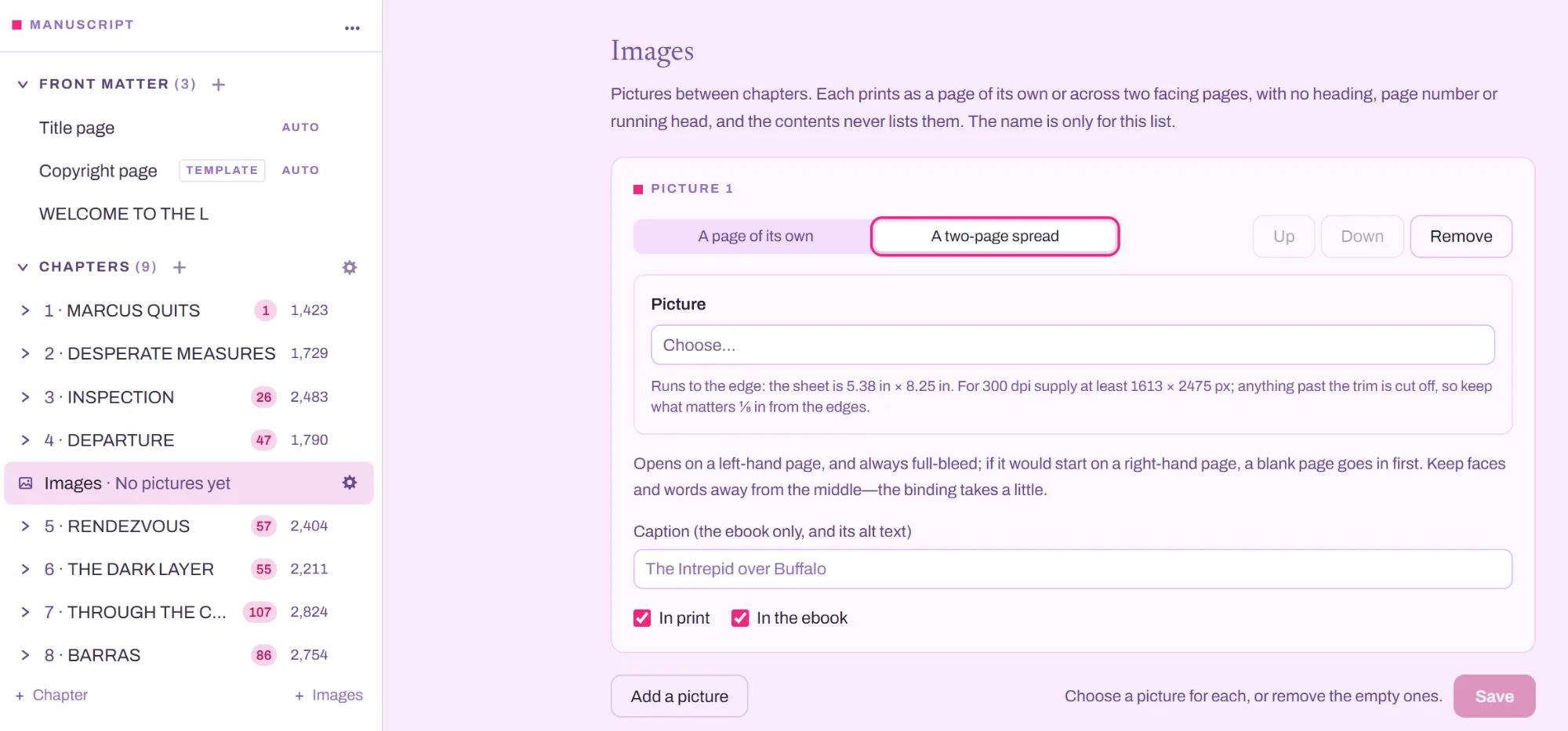
Maps, illustrations, art plates: they used to have to hide at the end of a scene. Now the + beside Chapters offers Chapter or Images. An Images item sits in your chapter list like a chapter, and you can drag it wherever it belongs.
It holds one picture or several, each a full page or a two-page spread. A spread always opens on facing pages; Write adds a blank page before it when it needs to. The pages carry no running head or page number and stay out of the contents. Each picture can go in the paperback, the ebook or both, so a spread in print can be a single page in the ebook.
Excerpts
You can now publish a few chapters on their own, as a PDF or an EPUB: a sample for your newsletter, a reader magnet, the first three chapters for a review copy. Choose the first and last chapter, and the front and back matter you’ve marked for excerpts comes along in place of the book’s. See Make an excerpt.
The codex: a timeline and a way back
Every codex entry now has a Timeline: every fact about that character, place or thing, laid out across your story’s time.
Codex backups can now come back, too. A universe’s codex backup can be restored over the universe it came from, or brought in as a new universe so you can compare the two. See Restore from a backup.
Small things that make a book look finished
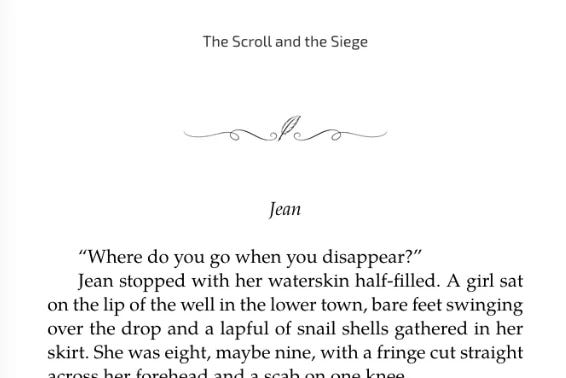
The header rows some books print under a chapter title—a viewpoint character, a place, a date—can now print after a scene break as well, set scene by scene.
Raised initials get the room they need above them, in print and in the ebook.
Working with co-authors and editors
Resolve all clears every comment on a scene, a section or the whole book at once, when a round of notes is done.
On a book someone has shared with you, a small chip says what you are on it: co-author, editor or reader.
Make it yours
Write now offers thirteen colour themes, six light and seven dark, picked from a row of swatches. Your choice follows you to the other Author Tools sites.
If you write with an AI
If you’ve connected an AI to Write, it can now start a backup of your whole library, tell you when it’s ready and hand you the download link. It can also list your universes’ codex backups.
Write: Draft, revise and typeset your books in one place, with a codex that keeps track of your world. Open Write
This post first appeared on the Author Tools blog.